An Azure Virtual Machine (VM) is a scalable, on-demand computing service from Microsoft Azure that lets you run applications and workloads in the cloud without owning physical servers. It functions like a virtual computer, complete with CPU, memory, storage, and networking, all hosted on Azure's global data centers.
Think of it as renting a customizable computer in the cloud. You pick the operating system, Windows Server, Linux distributions like Ubuntu or CentOS, and configure resources to match your needs, from small test environments to high-performance enterprise apps.
As part of Azure's Infrastructure as a Service (IaaS) offering, Azure VMs handle the underlying hardware complexities, so you focus on deploying software and managing your OS.
Why Use Azure Virtual Machines?
Businesses choose Azure VMs for their flexibility and cost savings over on-premises servers. You pay only for what you use, scaling resources up during peak times or down when idle, which cuts hardware maintenance costs by up to 40% in many cases.
They're ideal for development and testing, hosting websites, running databases, or supporting disaster recovery. For instance, a startup can spin up a VM for a new app prototype in minutes, then resize it as users grow.
Azure VMs also integrate seamlessly with other Azure services like Azure SQL Database, Blob Storage, and Active Directory, creating powerful hybrid environments.
Key Features of Azure Virtual Machines
Azure VMs support thousands of VM sizes, from burstable B-series for light workloads to memory-optimized E-series for big data analytics. Generation 2 VMs offer advanced features like Secure Boot and virtual Trusted Platform Module (vTPM) for enhanced security.
Storage options include Premium SSD for high IOPS, Ultra Disks for extreme performance, and ephemeral disks for temporary data. Networking features like Accelerated Networking reduce latency for data-intensive apps.
Auto-scaling, availability sets, and Azure Virtual Machine Scale Sets ensure high availability, distributing VMs across fault domains to prevent single points of failure.
How to Create an Azure Virtual Machine Step-by-Step
Start in the Azure portal by searching for "Virtual machines" and clicking "Create." Select your subscription, create a resource group (a logical container for resources), and name your VM.
Choose an image like Windows Server 2022 or Ubuntu 22.04, then pick a size, start with Standard_D2s_v5 for balanced performance. Set up authentication with SSH keys for Linux or a password for Windows, and configure networking with a virtual network and public IP.
Under disks, opt for managed disks; add data disks if needed. Review settings, including monitoring and auto-shutdown for cost control, then deploy. Deployment takes 5-10 minutes.
Connect via RDP for Windows (download the RDP file from the portal) or SSH for Linux using tools like PuTTY.
Sizing and Scaling Your Azure VM
Right-sizing prevents overprovisioning. Use the Azure portal's VM selector or tools like Azure Advisor to recommend sizes based on CPU, memory, and disk metrics.
For scaling, resize a stopped VM vertically (more power) or use Scale Sets horizontally (add instances). Spot VMs offer up to 90% discounts for interruptible workloads like batch processing.
Monitor with Azure Monitor for insights; set alerts for 80% CPU usage to trigger auto-scaling.
Security Best Practices for Azure VMs
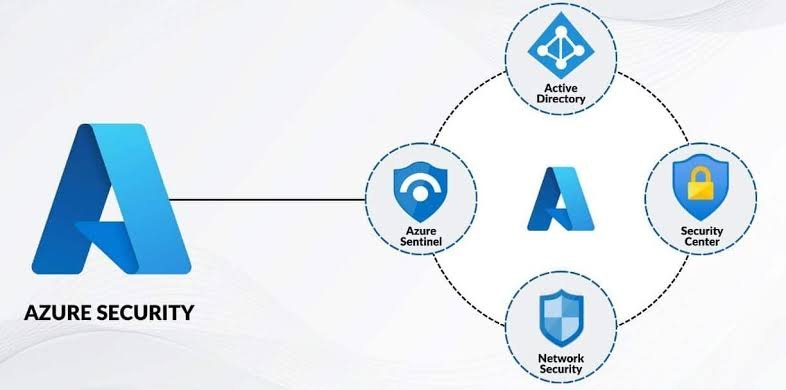
Enable Azure Disk Encryption with Azure Key Vault for data at rest. Use Network Security Groups (NSGs) as firewalls to restrict traffic, and allow only port 3389 for RDP from trusted IPs.
Implement Microsoft Defender for Cloud for threat detection and Just-In-Time (JIT) VM access to limit exposure. Always apply OS patches via Azure Update Management.
For compliance, use Azure Policy to enforce standards like turning off legacy protocols.
Cost Management for Azure Virtual Machines
Costs depend on VM size, region, OS, and storage expect $0.01-$5+ per hour. Use the Azure Pricing Calculator to estimate; reserved instances save 72% for long-term use.
Shut down unused VMs and delete disks to avoid charges. Azure Cost Management tracks spending with budgets and forecasts.
Hybrid Benefit lets Windows Server license owners apply it to Azure VMs, slashing costs further.
Common Use Cases and Real-World Examples
Developers use Azure Virtual Machine's for CI/CD pipelines with Azure DevOps. E-commerce sites run on VM Scale Sets for Black Friday traffic spikes.
Enterprises migrate legacy apps via lift-and-shift, then optimize. Data scientists leverage GPU-optimized VMs like NC-series for AI training.
In India, businesses in Gurugram use Azure VMs for scalable SEO tools and cloud security testing, integrating with local data centers for low latency.
Managing and Troubleshooting Azure VMs
Use Azure PowerShell or CLI for automation: az vm create for quick deploys. View logs in Azure Activity Log for issues.
Common fixes: Restart for hung states, check NSGs for connectivity blocks, or use Serial Console for no-access scenarios.
Back up with Azure Backup for point-in-time recovery.
Migrating to Azure Virtual Machines
Assess on-premises servers with Azure Migrate, which discovers dependencies and sizes VMs. Replicate with minimal downtime using agentless options.
Post-migration, optimize with Azure Hybrid Benefit and right-sizing recommendations.
Future of Azure Virtual Machines
Azure continues evolving with confidential computing for encrypted VMs and integration with Azure Arc for on-premises management. Expect more AI-optimized sizes and green initiatives for sustainable cloud.
For digital marketers and cloud pros, Azure VMs power secure, scalable infrastructures for content delivery and analytics workloads.